
Should I Mount Duel Monitor PC Gaming: A Complete Guide
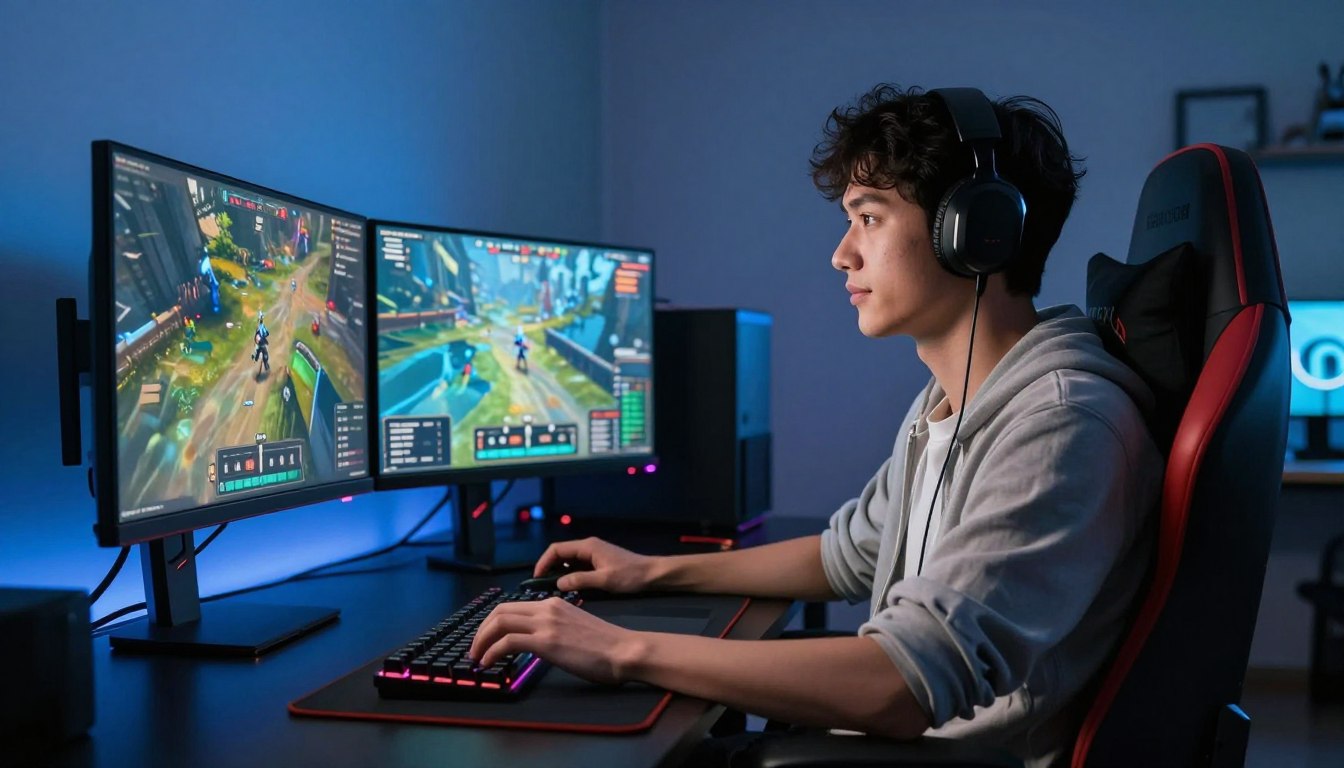
Mounting two screens is worthwhile if you use the second one often and want a cleaner, more adjustable gaming space, but it is not required to play PC games. If you stream, check chat, or keep a walkthrough beside a game, a monitor arm can free desk space and make positioning easier. Extend mode is a Windows display setting that lets each connected screen show a separate desktop workspace.
This setup can also help with productivity when gaming shares a desk with school, work, or creative projects. The tradeoff is simple: a second screen takes room and adds another display to arrange. Mounting is optional, so there is no need to change a comfortable setup just for appearances.
Key Takeaways
- A monitor arm is optional, not a requirement for PC gaming.
- Two screens help most when you stream or multitask regularly.
- A secondary monitor can keep chat or a guide visible during play.
- Mounting can reclaim desk surface and make screen positioning easier.
- Decide based on your regular gaming routine, not the setup-day novelty.
Decide first whether the second screen will be useful during a typical gaming session, not just on the day you set everything up.
Should I Mount Duel Monitor PC Gaming for My Setup?
If you regularly check chat, a walkthrough, or another application while playing, a second screen can save repeated window switching. A dual monitor setup lets you keep that information within reach without expanding the game across both screens.
Choose two monitors when a recurring task needs its own screen. No game requires a dual-monitor setup, and the added display is most useful when you actively use it during play.
A second screen earns its place when it supports a regular gaming task, not simply because it makes the desk look bigger.
When Two Screens Help
Streamers can keep Twitch chat and streaming tools on the secondary monitor while the game stays on the primary monitor. You can also leave Discord, a game guide, music controls, or a team schedule open beside the game.
That separation makes information easier to check at a glance. You do not have to expand the game across both monitors, which can put a bezel through the action or stretch the picture awkwardly. Keep the game on one screen and use the other for applications that support your play.
For multitasking, two displays can reduce the small interruptions that add up over a long session. You can glance at a walkthrough during a puzzle, then return your focus to the game. That is a practical improvement to the gaming experience when you need those details often.
When One Screen Is Enough
One screen is enough if you prefer a focused gaming space and rarely check anything else. Switching windows occasionally may be less bothersome than making room for another monitor and keeping it organized.
A three-monitor setup can suit specific streaming, simulation, or work needs, but three displays may feel excessive on a compact desk. If you rarely multitask, the extra monitors can take up space without making your games more enjoyable.
Choose two screens for a recurring task, not simply because a larger setup looks impressive.
What Does a Monitor Arm Improve in a Gaming Setup?
A monitor arm can clear the footprint of bulky stands and let you position each screen without rearranging the whole desk. It gives a monitor setup more room to adapt as you change your chair, desk, or preferred viewing position.
A monitor arm improves flexibility, but it cannot guarantee less strain when the screens are poorly positioned. Adjustability helps only when the final setup suits your normal seated posture.
Desk Space and Cable Routing
Factory stands can occupy a wide patch of desk, especially when two monitors sit side by side. Moving the screens onto a monitor arm frees that surface for a keyboard, mouse, speakers, or a larger mouse pad.
Arms can also help organize cables. Many models include clips or channels that guide power and video cables along the arm instead of letting them hang across the desk. Leave enough slack for movement, so a cable does not pull tight when you adjust a screen.
A secondary monitor can angle toward your chair instead of pointing straight ahead. That small adjustment makes it easier to glance at chat or a guide without shifting the entire desk setup.
Screen Height and Adjustability
Many adjustable arms offer about 10-15 inches of height adjustment, tilt from -5° to 35°, and 90° rotation in either direction. Those common ranges help you raise, tilt, or turn a monitor as your needs change.
Use the movement to make the screens easier to view, rather than assuming the arm itself will prevent strain. A screen that sits too high, too low, or too far to one side can still make your posture uncomfortable.
Position the secondary monitor so you can check it without leaning or turning sharply. Keep both screens easy to view from your normal seated position rather than twisting your neck to reach the secondary monitor.
Which Mount Style Fits Two Gaming Screens?
A dual-arm mount suits a pair you expect to keep together, while separate arms offer more freedom to reposition each screen. The best fit depends on whether your monitors match and how often you expect to move them independently.
Pick separate arms when screen size or future upgrades call for independent movement. Factory stands remain a simple option if you do not need more desk space or extra adjustment.

| Option | Desk footprint | Independent adjustment | Best fit |
|---|---|---|---|
| Dual-arm mount | One shared clamp or base | Separate arm movement, often linked by one mount | Matching pair kept together |
| Two single arms | Two clamps or bases | Each screen moves independently | Different sizes or future upgrades |
| Factory stands | Two stand bases | Limited to each stand’s built-in movement | Simple setup without a mount |
A Dual-Arm Mount for a Fixed Pair
A dual-arm mount can keep a matching pair together and give both screens a coordinated position. It is a straightforward choice when you expect the monitors to stay in the same arrangement and want one mounting system to manage them.
Look at how the arms move before choosing a model. Some designs make it easier to keep the screens aligned, while others allow more individual adjustment. A shared mount still needs to support the weight and size of each monitor.
Two Single Arms for Independent Movement
Separate arms can better accommodate monitors with different sizes or a future upgrade. You can move one screen without shifting the other, which helps if you rotate a secondary display or change its position often.
Factory stands need no extra mount, but their bases use desk surface and may limit positioning. Approximate price bands are $20-40 for fixed wall mounts, $40-100 for basic adjustable arms, $100-200 for gas-spring arms, and $80-150 for dual-monitor mounts. These are broad examples, not guaranteed current quotes.
If you expect to replace one monitor or frequently change its position, favor the option that lets you move that screen independently.
Will the Mount Fit Your Monitors and Desk?
Before ordering, compare the VESA pattern, weight, and size of each screen with the mount’s stated limits. Check every monitor against the limit for its own arm, not just the mount’s total capacity.
The VESA pattern is the spacing between a monitor’s mounting holes. Common patterns are 75x75mm and 100x100mm, but not every monitor or mount uses those sizes.
Check the VESA Pattern
Look at the monitor manual or its rear panel to find the VESA pattern. If the screen has no mounting holes, it may need a model-specific adapter or may not suit the arm you chose.
Common monitor mounts cover screens from 13 to 32 inches and monitor weights from 5 to 30 pounds. Those ranges are useful checks, not a promise that every mount supports every screen within them.
Match Weight and Screen Size
Record each screen’s diagonal size and weight, then compare both with the mount’s per-arm limits. A useful planning rule is to choose a weight rating at least 1.5 times the monitor’s weight.
A monitor that is within the size range can still be too heavy for an arm. Include the weight of any attached accessories if the manufacturer includes them in its load guidance.
Check the Desk and Clamp
Use this checklist before buying or installing the mount:
- VESA pattern: confirm each monitor’s hole spacing matches the arm.
- Weight and size: compare each screen with its per-arm limits.
- Clamp clearance: confirm the clamp fits the desk edge and thickness.
- Desk material: check that the surface can safely support the clamp.
- Arm clearance: make sure the arms can move without hitting a wall or shelf.
- Cable reach: leave enough power and video cable length for normal movement.
A desk depth of 24-30 inches is a useful planning range for a monitor setup. Check the room behind the screens too, since the arms need space to swing.
Glass, hollow-core, or weak desk surfaces can make a clamp unsuitable. Those desks may need a different mounting solution rather than a clamp that could damage the surface.
Do not rely on screen size alone, since a monitor that fits the arm’s size range can still exceed its weight rating.
How Should You Position Two Screens for Gaming?
Start with the screen you use for the game, placing it directly ahead of your seated position. Keep the secondary monitor beside it and angle that screen slightly inward for a comfortable glance.
Place the primary monitor in front of your chair, with its top portion around eye level. A common viewing-distance range is 20-28 inches, though your desk and screen size affect what feels comfortable.
Set the Primary Monitor First
Set your chair and posture first, then center the primary monitor with your seated position. Avoid centering the pair as a whole if that leaves the game screen off to one side.
Many gamers find a 27-inch screen practical at a typical desk distance. A 32-inch screen can work well when you have enough desk depth and viewing distance to see the full display comfortably.
Different-sized screens can still line up neatly. Match their top edges or the parts of the screens you use most, then adjust the secondary monitor so its angle feels natural from your chair.
Choose Side-by-Side or Stacked Screens
Side-by-side screens suit desks wide enough to keep both displays within an easy viewing range. Turn the secondary monitor slightly toward you, especially if you use it for chat or reference material.
Stacking can help when a desk is narrow, because it uses vertical space instead of adding another screen beside the primary one. It may also suit a secondary display used only occasionally, though frequent glances can be less comfortable when the screen sits well above or below the primary.
Before settling on a layout, open the game and the application you plan to keep visible. Sit in your normal gaming posture and check that you can see the secondary screen without repeatedly turning your head.
How Do You Connect and Configure Two Monitors?
Connect each monitor to a video output that the computer and graphics hardware support, then select Extend in Windows 11. Extend gives each screen a separate desktop workspace; Duplicate shows the same content on both.
A conventional HDMI splitter on one HDMI output usually mirrors the source image. Independent screens need supported separate outputs or a compatible display solution instead.

Follow these steps to connect and arrange your displays:
- Check the computer’s available video outputs and the monitor inputs they support.
- Connect each monitor to a supported output, then turn on both screens.
- Press Windows+P and choose Extend for separate desktops, or Duplicate to show matching content.
- Open Settings > System > Display, select Identify, then drag the numbered icons into the same arrangement as your desk.
- Choose the screen you want for gaming and set it as the primary display in Display settings.
Connect Each Screen to a Supported Output
Independent displays can use separate supported graphics outputs, a compatible display-capable USB-C connection, a USB display adapter, or a dock. A USB-C connector alone does not confirm video support, so check the computer specifications before relying on it.
If you want two screens to show different windows, a conventional HDMI splitter is not the right tool. It usually duplicates one source image instead of extending the desktop to independent displays.
Select Extend and Arrange the Displays
After connecting the monitors, Windows 11 lets you identify them at Settings > System > Display > Identify. Drag the numbered icons to match the screens’ physical positions, so the pointer moves in the expected direction.
If a connected monitor is missing, open Settings > System > Display > Multiple displays and select Detect. Windows 10 support ended on October 14, 2025; after that date, Microsoft no longer provides free Windows Update software updates, technical assistance, or security fixes for Windows 10.
If a screen remains missing, use Detect before changing cables or buying another adapter.
Will Two Monitors Affect Gaming Performance?
A second monitor does not automatically reduce game performance, but the computer must support both screens at their chosen resolution and refresh rate. The combined display count, resolutions, and refresh rates must fit the computer’s graphics hardware or display accessory.
Typical descriptions differ by graphics hardware category, but they do not guarantee that every computer in that category supports the same configuration. The exact model and intended display settings matter.
| Graphics hardware | Typical stated display count | Gaming-use implication |
|---|---|---|
| Integrated GPU | Up to 3 monitors typically | Check the specific computer’s resolution and refresh limits |
| Consumer dedicated GPU | Up to 4 external displays commonly | Use supported GPU outputs for the gaming monitor |
| Workstation GPU | 6 or more monitors natively | Confirm the model’s supported display configuration |
Check the Computer’s Display Capacity
Display count is only one part of capacity. The computer and its graphics hardware or accessory must also support the intended resolution and refresh rate on the connected screens.
Integrated GPUs are typically described as supporting up to three monitors. Consumer dedicated GPUs are commonly described as supporting up to four external displays, while workstation GPUs are described as supporting six or more natively.
Those ranges are broad descriptions, not guarantees for every computer. The intended display count, resolution, and refresh rate must all fit the specific hardware and connection method.
Protect Gaming Refresh Rates
GPU-driven displays can support refresh rates of 120 Hz or higher when the hardware and connection allow it. USB-driven DisplayLink or SiliconMotion displays are typically limited to 60 Hz, so they are not recommended as primary screens for gaming, video editing, or 3D applications.
Connect gaming and other performance-sensitive monitors directly to GPU outputs. A USB display adapter can still suit chat, documents, or other secondary applications when its limits meet your needs.
Multi-4K setups using DisplayLink require at least a modern quad-core CPU and a dedicated GPU under the stated minimum recommendations. That requirement is specific to multi-4K DisplayLink use, not a general rule for every two-monitor setup.
Check the exact computer or GPU specifications for the combined display configuration before relying on a typical monitor-count range.
What Should You Check Before Your First Game?
Test the setup with the game and applications you actually use, not just the Windows desktop. Confirm that the game opens on the primary monitor and the secondary screen keeps useful content visible.
A dual-monitor setup has two separately positioned displays, and each can use a different resolution or refresh rate. Align the screens properly, then judge the arrangement during real use before settling in.
Check the game, the secondary applications, and the moving arms together. A setup that looks fine on the desktop can still hide chat or pull a cable during play.
Run through this quick checklist before a long session:
- Launch the game and confirm which monitor it opens on.
- Check the game’s display setting and select the primary monitor if needed.
- Open chat, a guide, or another application on the secondary screen.
- Use the mixed refresh rates together and decide whether they feel right.
- Check that cables have enough slack for ordinary monitor-arm movement.
- Confirm both screens remain aligned after you adjust their positions.
Some games open on the wrong display, even when Windows has the intended primary monitor. Change the game’s in-game display selection if it launches on the secondary screen.
Mixed refresh rates can work, but the experience depends on the screens and applications you use. Try a real gaming session rather than judging the setup from a quick look at the desktop.
Move each arm through its normal range once and confirm that no cable pulls tight or catches.
Conclusion
Mount two screens if the extra workspace and adjustable positioning solve a real problem in your gaming routine. A mount is most useful when two monitors support regular multitasking or streaming, and the arms fit both screens and the desk.
You do not need to mount a secondary display simply to make a gaming setup look larger. The value comes from using that screen often, while keeping the primary monitor centered for play.
Before choosing a mount, measure each monitor’s weight and VESA pattern, then check the clearance around the desk clamp. Measure both monitors and the desk clamp area before choosing the mount.
FAQ
Is a 27 or 32 better for gaming?
A 27-inch monitor is often practical at a typical desk distance, while a 32-inch screen suits a setup with enough viewing distance and desk depth. Choose the size you can see comfortably without leaning forward or moving your head to scan the display. Your desk depth and usual seating position matter as much as the diagonal measurement.
Is 3 monitors overkill for gaming?
Three monitors are not overkill when you have a regular reason for each display, such as streaming tools, a simulation layout, or work applications. They may be unnecessary if the extra screens have no clear task. On a compact desk, the additional display can take up useful room without improving your gaming routine.
How do I get my two monitors to show different things?
Connect both monitors to supported outputs, then press Windows+P and choose Extend in Windows 11. Extend gives you separate desktop workspaces, so you can keep a game on one screen and chat or a guide on the other. Duplicate instead shows the same content on both displays.
How many monitors can my PC support?
Your PC’s supported monitor count depends on its graphics hardware and connection method, along with the resolutions and refresh rates you want. Integrated GPUs are typically described as supporting up to three monitors; consumer dedicated GPUs commonly support up to four external displays. Check the exact computer or GPU specifications for your intended setup.
How to make two monitors act as one?
A game can span two screens only when the game and graphics setup support a combined view. Windows Extend keeps separate workspaces, so it does not automatically turn two displays into one wide gaming screen. A bezel between the monitors can also interrupt the image, even when a game supports spanning.
Can I run 2 monitors off 1 HDMI port?
A conventional HDMI splitter usually mirrors one source image instead of extending the desktop across two independent monitors. To show different windows, use supported separate outputs or a compatible display-capable adapter or dock. Check whether a USB-C port supports video before relying on it for an additional screen.
How do I make my two monitors not show the same thing?
Press Windows+P in Windows 11 and select Extend rather than Duplicate. Extend lets each screen show a separate desktop workspace, while Duplicate repeats the same image on both. If Windows does not detect a connected monitor, use Detect in Display settings before replacing an adapter or cable.

 By
By
 By
By