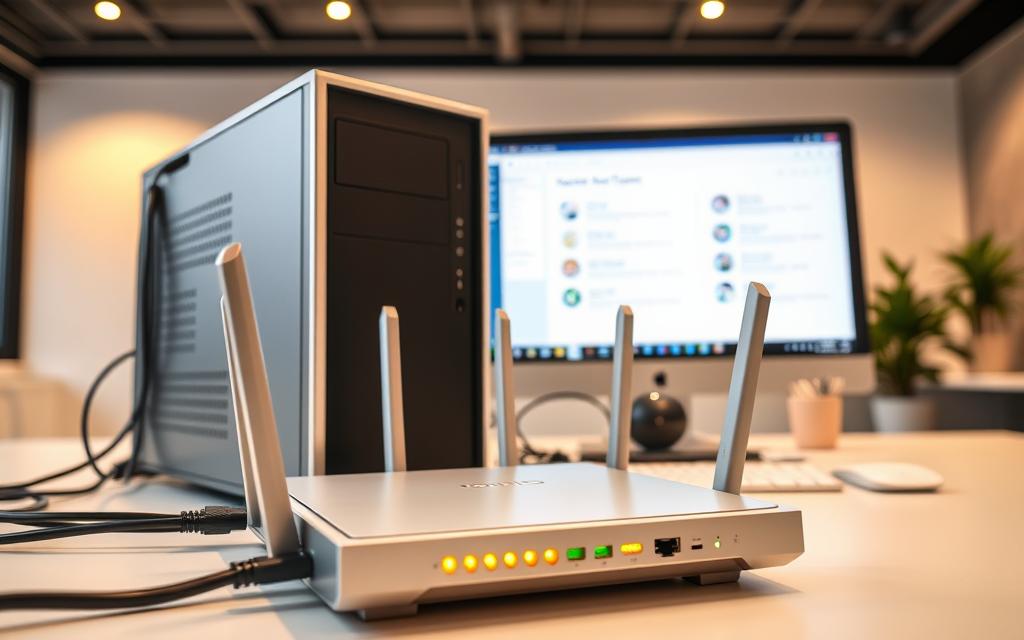

Setting up a network for your home or office doesn’t have to be complicated. With the right hardware and a few simple steps, you can establish a stable connection quickly. Whether using a router, modem, or ethernet cable, proper setup ensures smooth performance.
First, verify your computer has a compatible wireless adapter. For Windows users, check Device Manager to confirm. Next, ensure your router supports modern standards like 802.11ac or 802.11ax for optimal speed and coverage.
Anyone researching connecting may also want to understand forget saved before deciding on the best option.
Placement matters—keep the router in an open area for better signal strength. Use a cable for initial testing if needed. Always prioritize security with WPA2 or WPA3 encryption to protect your network.
Understanding Network Connections
Wired and wireless networks each offer unique benefits for different scenarios. The right choice depends on speed needs, reliability, and environmental factors. Below, we break down the essentials to help you decide.
Wired vs. Wireless: Key Differences
Ethernet connections provide faster speeds and lower latency, ideal for gaming or large file transfers. Wireless networks offer flexibility but may suffer from interference or signal drops.
- Speed: Wired networks often deliver 1 Gbps, while Wi-Fi may cap at a few hundred Mbps.
- Reliability: Physical cables avoid interference from walls or other devices.
- Setup: Wireless requires no cables but needs proper router placement.
Essential Network Terms
Know these terms to navigate setup confidently:
- SSID: Your network name, visible when scanning for Wi-Fi.
- Router: Directs traffic between devices and the internet.
- Modem: Connects your home to the ISP (e.g., cable or DSL).
- Security Key: A password protecting your wireless network.
Pro Tip: Change default SSID and passwords to deter unauthorized access. Dual-band routers (2.4 GHz and 5 GHz) reduce congestion in busy areas.
How to Connect My Computer to a Network
Establishing a stable internet link requires specific tools and configurations. Whether using cables or Wi-Fi, proper setup minimizes errors and boosts performance. Below, we outline hardware needs and connection methods.
Essential Equipment Checklist
Gather these items before starting:
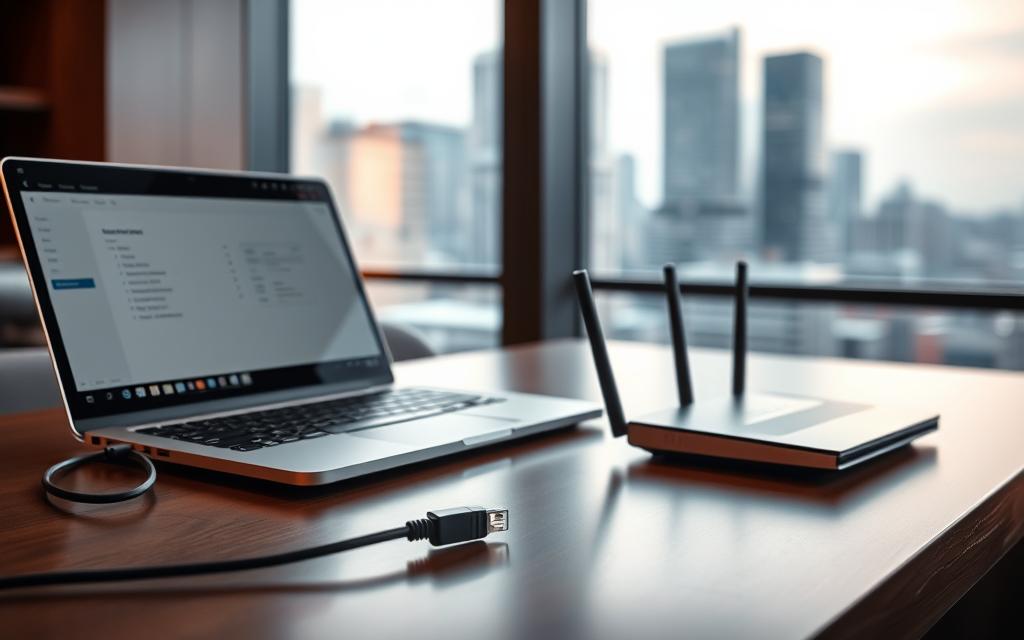
- Router and modem (ISP-provided or purchased separately).
- Ethernet cable (Cat6 recommended for high speeds).
- Coaxial/DSL cables for modem connections.
- Wireless adapter (if your device lacks built-in Wi-Fi).
Wired Connection: Ethernet Steps
For the fastest speeds, use an Ethernet cable:
- Plug one end into your computer’s LAN port.
- Connect the other end to the router’s LAN port.
- Power on devices—no additional settings needed.
| Feature | Ethernet | Wireless |
|---|---|---|
| Speed | Up to 1 Gbps | 300–900 Mbps |
| Latency | Low | Moderate |
| Setup | Plug-and-play | Requires SSID/password |
Wireless Setup Guide
For Wi-Fi, follow these steps in Windows:
- Click the Wi-Fi icon in the taskbar.
- Select your router’s SSID.
- Enter the security key (or press the WPS button on the router).
Tip: For legacy devices, install a USB adapter and update drivers. Check our step-by-step network setup guide for advanced configurations.
Configuring Your Router and Modem
Proper setup of your router and modem ensures a fast, secure network. From placement to encryption, each step impacts performance and safety. Follow these guidelines for seamless operation.
Positioning for Optimal Signal Strength
Location matters. Place your router centrally in multi-story homes for even coverage. Avoid walls, metal objects, and appliances that cause interference.
For larger spaces, consider a mesh network. These systems use multiple nodes to extend coverage without signal loss.
“A centrally placed router reduces dead zones by 40% compared to corner placements.”
Securing with WPA3 Encryption
Upgrade your network security with WPA3 if your devices support it. This standard offers:
- Stronger encryption than WPA2
- Protection against brute-force attacks
- Forward secrecy for past sessions
Check your router settings to enable WPA3. Older devices may need firmware updates first.
Changing Default Login Credentials
Default usernames and passwords pose risks. Follow these steps to secure your router:
- Access the admin console via 192.168.1.1
- Navigate to the Administration tab
- Create a complex password meeting NIST guidelines
| Security Measure | Benefit |
|---|---|
| WPA3 Encryption | Advanced protection against hacking |
| Custom Admin Credentials | Prevents unauthorized access |
| Regular Firmware Updates | Patches security vulnerabilities |
For detailed router settings, see our guide on accessing your Wi-Fi router’s admin panel.
Troubleshooting Common Connection Issues
Even the most reliable networks can face occasional hiccups. Weak signals, login errors, or slow speeds disrupt workflow. Quick diagnostics and targeted fixes restore seamless performance.
Fixing Weak Signals and Interference
Microwaves, cordless phones, and thick walls weaken wireless network signals. Use these steps to identify and resolve interference:
- Spectrum analyzer apps like NetSpot scan for crowded Wi-Fi channels.
- Relocate your router away from appliances emitting 2.4GHz frequencies.
- Switch to 5GHz bands for less congestion (if your adapter supports it).
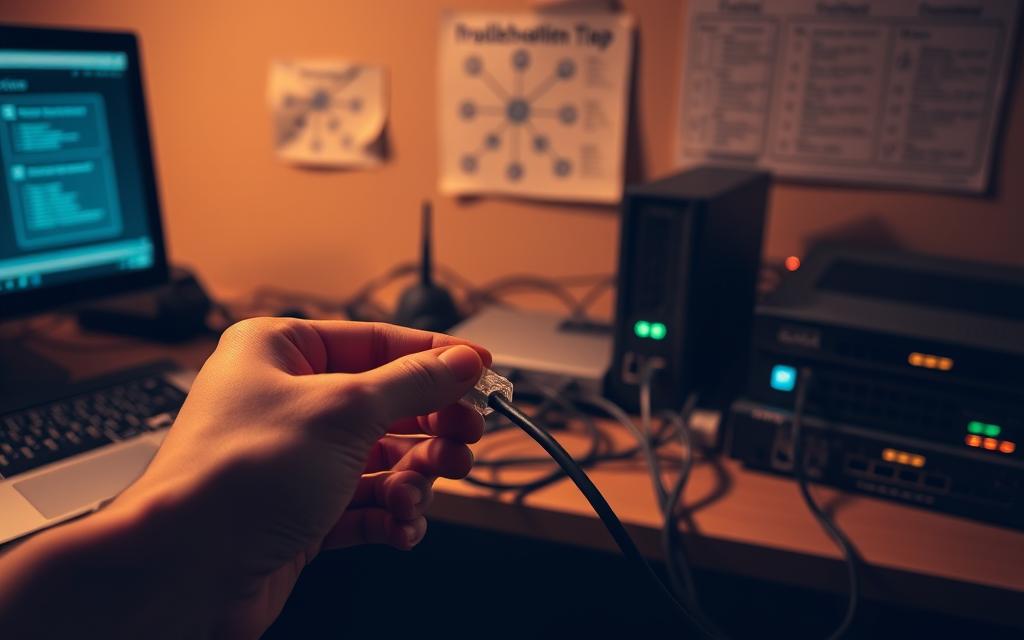
Pro Tip: Ethernet loopback tests verify cable integrity. Plug one end into the router and the other into a laptop to check for link lights.
Solving Password and Authentication Errors
Failed logins often stem from incorrect passwords or driver conflicts. Try these solutions:
- Reset your router and re-enter the security key.
- Update adapter drivers via Device Manager.
- Run Command Prompt as admin:
ipconfig /release→ipconfig /renewto refresh IP.netsh int ip resetclears corrupted settings.
“ISP ping tests (e.g.,
ping 8.8.8.8 -t) isolate last-mile connectivity problems.”
| Issue | Tool | Fix |
|---|---|---|
| Slow DNS | Command Prompt | ipconfig /flushdns |
| Driver Conflicts | Safe Mode | Disable third-party VPNs |
Enhancing Network Security
Modern cybersecurity threats demand advanced network security solutions. From residential Wi-Fi to corporate systems, layered protection prevents unauthorized access and data breaches. Implement these critical measures to safeguard your digital environment.

Configuring Firewall Protection
Windows Defender Firewall offers customizable inbound/outbound rules. Enable these advanced settings for optimal security:
- Stateful inspection: Tracks active connections for context-aware filtering
- Application-specific rules: Restrict programs like remote desktop clients
- IP address whitelisting: Only allow known devices
For enterprise networks, consider:
- RADIUS server integration for centralized authentication
- Biometric authentication for router admin access
- Cybersecurity insurance compliance checks
| Firewall Type | Best For | Limitations |
|---|---|---|
| Stateless | Basic home networks | No connection tracking |
| Stateful | Business environments | Higher CPU usage |
Wi-Fi Protected Setup Considerations
While WPS simplifies device pairing, its vulnerabilities require caution:
- Disable WPS if unused – brute-force attacks can compromise security keys
- Replace Temporal Key Integrity Protocol (TKIP) with AES encryption
- Use MAC address filtering alongside WPS for added protection
“WPS PIN vulnerabilities expose 50% of home networks to potential breaches within 4 hours of scanning.”
For critical systems, combine WPS with:
- Regular router firmware updates
- VLAN segmentation for IoT devices
- Enterprise-grade intrusion detection
Conclusion
Optimizing your setup involves balancing performance, security, and scalability. Physical components like routers and cables work alongside logical setups such as IP configurations for a seamless connection.
Prioritize proactive measures: update firmware, monitor traffic, and segment networks with VLANs. For IoT integration, assign static IPs and test bandwidth regularly.
Advanced users should explore certifications like CompTIA Network+ to master security protocols. A well-maintained network ensures reliability for both home and office environments.
FAQ
What’s the difference between wired and wireless networks?
A wired network uses Ethernet cables for a stable, high-speed connection, while a wireless network relies on Wi-Fi for flexibility and mobility. Wired setups are ideal for desktops, whereas wireless is best for laptops and mobile devices.
How do I find my network’s SSID?
The SSID (network name) is usually printed on your router or displayed in the Wi-Fi settings on your device. Open the network menu in Windows or macOS to see available networks.
Why won’t my computer connect to Wi-Fi?
Check if your router is powered on, ensure the correct security key is entered, and verify no physical obstructions block the signal. Restarting the router or updating the network adapter drivers may also help.
How do I secure my home network?
Use WPA3 encryption, change the default router login credentials, and disable remote management. A strong password and regular firmware updates further enhance security.
Can I connect multiple computers to one router?
Yes. Routers support multiple devices via Ethernet ports or Wi-Fi. Ensure your internet plan provides sufficient bandwidth for all connected devices.
What should I do if my Ethernet connection fails?
Verify the cable is securely plugged into both the computer and router. Test with another cable or port, and check if the network adapter is enabled in your system settings.
How do I improve weak Wi-Fi signals?
Reposition the router centrally, away from walls or electronics causing interference. A Wi-Fi extender or mesh network can expand coverage in larger spaces.
Is WPS safe to use for connecting devices?
While convenient, WPS can be vulnerable to attacks. Disable it if unused, and prioritize manual Wi-Fi setup with a strong security key.

 By
By