
Should I Mount Duel Monitor PC Gaming: A Complete Guide
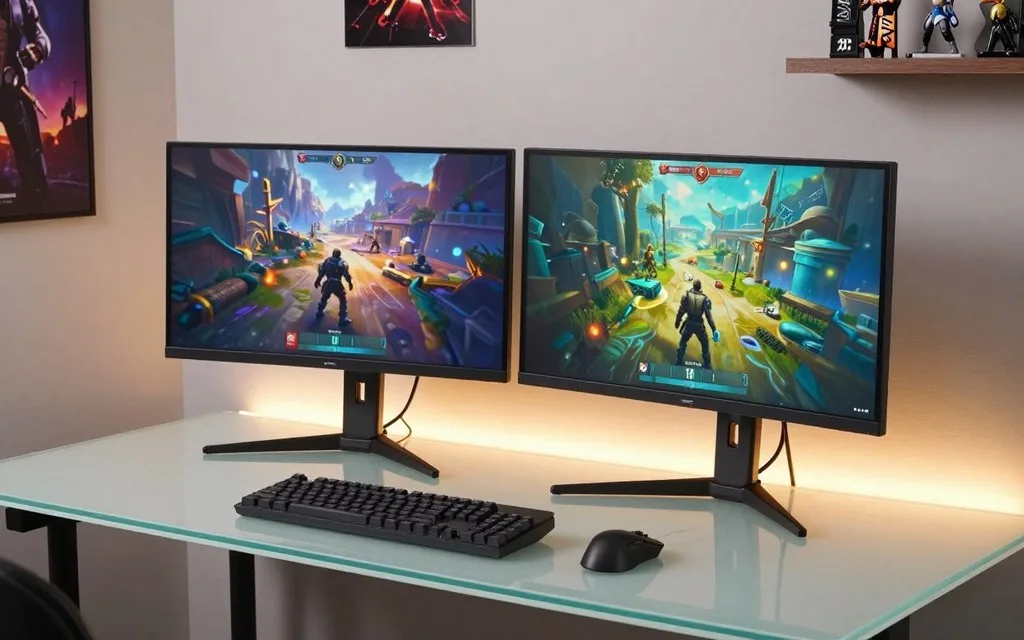
Mounting two screens can make a PC gaming area more comfortable and usable, but it is not essential for every player. A second display can keep background tasks close by, while a monitor mount can free desk space and help you place each screen. The VESA mounting pattern is the standardized spacing of the four screw holes used to attach a monitor to a compatible mount.
This guide helps you decide whether mounting fits your setup and how to make the displays comfortable for gaming, productivity, and multitasking. Mounting two screens is separate from using them as one extended desktop. If stable stands already put both screens in a comfortable position, a mount may not improve your day-to-day use.
Key Takeaways
- A mount can reclaim desk space and make screen positions easier to adjust.
- Keep the primary display comfortable for gameplay and the secondary display useful for background tasks.
- Check screen and desk compatibility before choosing a mount.
- Use Windows Extend mode for separate desktop areas.
- A stable, comfortable stand remains a valid choice.
The right choice is the one that keeps the gameplay screen comfortable while making the second screen easy to use.
Should I Mount Duel Monitor PC Gaming?
Yes, mount two screens if you need more desk space or want to position each display independently while gaming. A mount can replace bulky factory stands and help you direct the primary and secondary displays where you want them.
Mounting is most useful when streaming, multitasking, or reclaiming desk space matters. You might keep Discord or OBS visible on the secondary display while the game stays on the primary display. That can make it easier to check chat or controls without repeatedly switching away from gameplay.
Keep the screens on stable, comfortable stands if a mount would not improve their position or free useful desk space.
A dual-monitor setup can still work well without an adjustable mount. If you rarely reposition either monitor, the desk has enough room, and the factory stands feel steady, replacing them may add cost and installation work without a clear benefit.
The right call depends on what gets in your way now. If stand bases crowd your mouse area or one screen sits at an awkward angle, a mount may solve a real problem. If the current stands keep both screens stable and comfortable, keeping them is a sensible option.
What Does a Dual-Monitor Mount Improve?
A second screen is most useful when it keeps chat, a walkthrough, or streaming controls visible without covering the game. Less switching can make it easier to follow a guide or monitor a stream while the primary display stays focused on gameplay.
The extra display helps with multitasking; the mount helps with space and positioning. Twitch and YouTube streaming can involve keeping viewer chat and streaming controls visible beside the game. Discord, music, email, and walkthroughs also make practical secondary-screen tasks.
A mount may clear surface area that factory stands occupied. You can use that room for a mouse pad, controller, or other gaming accessories. This is a physical change to the desk, not a way to improve the game’s graphics or frame rate.
With two monitors, you can keep a walkthrough open without covering the game, or check email without minimizing gameplay. A streamer can monitor chat and controls while the primary display continues showing the game. Your exact routine determines whether those conveniences matter.
Some competitive players prefer one focused screen during play and keep the secondary display idle. That is a reasonable choice. A second monitor does not help if its applications distract you or if you do not need to glance away from the game.
For a focused single-screen player, a mount only earns its desk space if it improves screen position or clears the work surface.
Will Your Monitors and Desk Fit the Mount?
Before choosing a mount, confirm that both screens and the surface supporting the mount are compatible. Each display needs a matching attachment method, and the desk must safely hold the clamp or other mounting hardware.
Check VESA fit and monitor weight
Look at each monitor’s manual or rear panel for its VESA mounting pattern. Common patterns include 75x75mm and 100x100mm, but not every monitor has matching holes. Check the monitor’s actual weight, including any required adapter plate, and compare it with the mount’s stated capacity.
The mount’s weight capacity must exceed each monitor’s weight. A mount that supports one display does not automatically support two displays at their combined weight. For a dual-monitor arm, check the stated capacity for each arm and the total load the mount can carry.
Check the desk surface and clamp area
Measure the desk thickness and check that the clamp can fit around the edge without hitting a frame, drawer, or cable tray. The surface material matters, too. A stable, solid desk is different from a weak or hollow surface that may flex under pressure.
Glass and weak or hollow desk surfaces need specific manufacturer approval for the mounting method. If the desk cannot safely take a clamp, use a different mounting method approved for that surface or keep the factory stand. Do not assume a clamp will work just because it fits the desk edge.
- Check the VESA pattern on each monitor.
- Check each screen’s weight, including any required adapter plate.
- Confirm the mount capacity exceeds the monitor weight.
- Check desk material, thickness, and clamp fit.
If a display has no matching VESA holes, verify a purpose-made adapter before buying an arm.
Which Dual-Monitor Mount Style Fits Your Setup?
A dual arm is a straightforward choice for two similar screens, while separate arms give each display more independent movement. Your layout and how often you reposition screens help determine which arrangement will work best.
Choose a fixed or adjustable wall mount
A fixed wall mount holds a screen in one dedicated position. It suits a layout you rarely change, such as a permanent desk arrangement. An adjustable wall arm lets you reposition a display when you switch tasks or need to move it out of the way.
Choose a fixed position for a settled layout and an adjustable arm for frequent repositioning. A fixed mount may suit a screen that always faces the same seat. An adjustable wall arm offers more movement, but only if you expect to use that range.
Compare a dual arm with separate arms
A dual-monitor arm carries both screens on one shared mount. Two separate single-monitor arms give each display its own mount and allow independent movement. A single-screen arm holds just one display, so a second screen needs its own support.
Separate arms can be easier to position when screen sizes differ or when you may upgrade only one display later. A shared dual arm keeps the setup together, which can be convenient for two similar monitors that move as a pair.
| Mount style | Independent movement | Useful situation |
|---|---|---|
| Fixed wall mount | No | Dedicated screen position |
| Adjustable single-screen arm | One screen moves | Frequent repositioning of one display |
| Dual-monitor arm | Both screens share one mount | Two similar screens on one support |
| Two separate single-monitor arms | Each screen moves independently | Different screen sizes or one-screen upgrades |
Choose the mounting style that can hold both screens in the positions you will actually use.
How Should You Arrange Two Screens on the Desk?
Put the screen used for gameplay where it is easiest to face, then arrange the secondary screen around the available desk space. Start with use, not symmetry: your primary display deserves the most natural position.
Set up a side-by-side pair
A side-by-side arrangement places two screens horizontally. Set the primary display centrally in front of you, with the secondary screen beside it for chat, streaming controls, or walkthroughs. Matching heights can make the pair feel orderly, but the screens do not need identical angles.
Keep gameplay on the screen you can face most naturally. A secondary display angled inward can make it easier to glance at without turning as far. If both screens sit at equal angles, the primary display may end up off-center from your seat.
Use a stacked or portrait arrangement
A stacked arrangement puts one screen above the other and can help when desk width is limited. A portrait secondary screen can make long pages or chat easier to scan. Windows 11 supports both landscape and portrait display orientations, so the display can be set to match its physical position.
Screen size and desk width can make a side-by-side pair impractical. A large second monitor may take up too much horizontal room, while a stacked screen can keep more of the desk open. Choose a layout that fits the tasks you actually put on the extra display.
- Side-by-side with matching heights.
- Side-by-side with the secondary display angled inward.
- Stacked, with one screen above the other.
- Landscape primary display with a portrait secondary display.
Keep the arrangement easy to reach without forcing your head to turn sharply to see the screen you use most.
Where Should You Position Each Screen for Comfortable Gaming?
Start with the gameplay screen centered in front of your seat, then position the second screen where you can glance at it comfortably. Face the primary display during play and angle the secondary display toward your seat instead of giving both screens the same angle by default.
A 27-inch monitor generally suits a viewing distance of 24 to 36 inches; a 32-inch monitor generally suits 28 to 42 inches. Either size can work at about 30 inches. The final position also depends on screen size, text scaling, eyesight, and personal comfort.
Measure from your seated position to the screen, then make small adjustments. If the secondary display sits farther to one side, angle it toward your chair so you can read it without twisting your whole body. Keep the primary display in front of you for regular gameplay.
At about 30 inches, both a 27-inch and a 32-inch monitor fall within their general viewing ranges. The larger screen may need more attention to how much of your view it fills. Text scaling can also change how comfortable small menus and messages feel.
Use your normal posture while checking the arrangement. If you lean forward to read the secondary screen, move it or adjust its angle before changing your seat position. A clear, comfortable view matters more than matching the screens’ edges perfectly.
The general viewing ranges can give you a starting point, not a fixed rule. Adjust the distance in small steps until text on the secondary display is readable without leaning forward.
What Cables and Ports Do Two Monitors Need?
For a gaming PC with a dedicated graphics card, connect both screens to supported outputs on that card when possible. Each display generally needs its own supported video output and a compatible cable.
Connect each screen to a suitable video output
Check the graphics card for HDMI, DisplayPort, and supported USB-C video outputs. Then match the available ports to the inputs on both monitors and choose a compatible cable for each connection. A port’s shape alone does not show whether it supports every resolution or refresh rate.
Two connected monitors generally need two supported video outputs. If the graphics card has one HDMI port and one DisplayPort output, you may be able to use both, depending on the monitors and supported modes.
Know what an HDMI splitter or USB adapter does
A basic HDMI splitter usually duplicates one signal instead of creating two independent extended desktops. That can show the same image on both screens, but it does not provide the separate desktop areas most people want for gaming and background tasks.
A compatible USB video adapter can add display connections, but its driver, resolution and refresh-rate limits, and intended workload matter. The OREI SplitExtend USBC2HDMI2 can extend or mirror to two screens, up to 4K at 30 Hz on one and 1080p at 60 Hz on the other. It has USB-A and USB-C connectivity, needs a Silicon Motion driver, and is described for productivity rather than gaming or graphics-intensive applications.
| Connection method | Display behavior | Constraint |
|---|---|---|
| Separate graphics card outputs | Can support independent displays | Ports and monitor modes must match |
| Basic HDMI splitter | Usually duplicates one signal | Does not create two independent desktops |
| OREI USB video adapter | Extends or mirrors two screens | Driver, resolution, and refresh-rate limits |
Confirm that the selected ports can drive each monitor at its intended resolution and refresh rate.
How Do You Set Up Two Monitors in Windows 11?
In Windows 11, choose Extend to use the two screens as separate parts of one desktop. Extend gives you room for a game on one display and other applications on the second.
Connect and extend the desktop
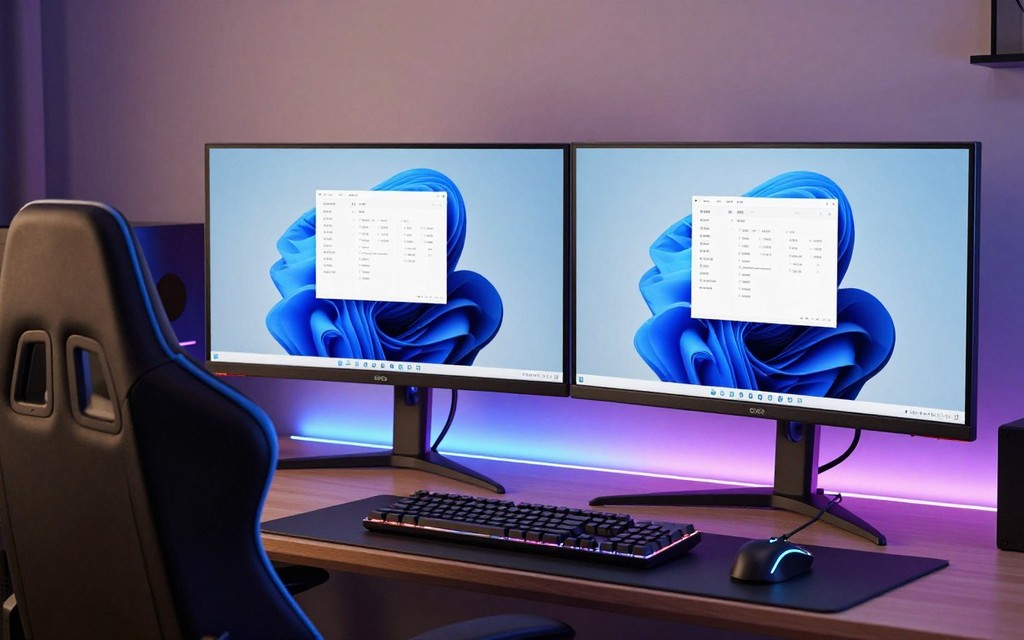
Follow these steps after both monitors are connected and turned on:
- Open Settings > System > Display.
- Select Extend to use separate desktop areas.
- Drag the numbered displays to match their physical positions.
- Apply the change.
Windows key + P opens the display-mode choices. Extend lets you move windows between screens, while Duplicate shows the same desktop on both. Windows also offers PC screen only and Second screen only modes.
Set the primary screen and display positions
In Settings > System > Display, select the screen you want for gameplay and set it as the primary display. Choose each monitor’s supported native resolution and refresh rate. The primary display is where Windows places key items such as the taskbar and many applications when they first open.
Windows 10 support ended October 14, 2025. After that date, Microsoft no longer provides free Windows Update software updates, technical assistance, or security fixes for Windows 10. This is a compatibility and security consideration, not a reason that a monitor cannot connect.
If you use a different screen as primary, games and applications may open there instead. Keep the display icons in Settings arranged to match your desk, so the mouse moves between screens in the direction you expect.
Windows 11 display settings include the display-mode options and controls for arranging numbered screens. Check that the mouse crosses between the displays in the direction they sit on your desk.
How Can You Make Two Monitors Act as One?
To make several screens act as one gaming canvas, configure NVIDIA Surround rather than choosing Windows Extend. Surround combines compatible displays for a wider game view, while Extend keeps each display as a separate desktop area.
Not every game supports a combined multi-monitor canvas. In NVIDIA Surround, setup includes selecting a display topology, arranging display icons, choosing orientation, setting the combined resolution and refresh rate, and adjusting bezel correction.
With Extend mode, the game stays on one screen while other applications remain on the other. Surround can spread a supported game across multiple displays. This wider view can make interface elements appear at awkward edges, so a larger canvas may not suit every game or player.
| Arrangement | Game view | Concrete example |
|---|---|---|
| Matching 16:9 displays | Same aspect ratio on each screen | Two 27-inch or two 32-inch monitors |
| 21:9 ultrawide | More horizontal screen space | 34-inch display at 3440 × 1440, about 5.0 million pixels |
| Three 1080p displays in Surround | One wider combined view | About 6 million pixels, compared with about 8 million on a 4K display |
A 21:9 ultrawide gives more horizontal space than a 16:9 screen. Three 1080p monitors in Surround can provide a broad view, but the game must support that layout. Bezel correction can help align the image where the displays meet.
NVIDIA Surround setup includes arranging the display icons and setting the combined resolution and refresh rate. Try the combined layout in a game you know well before relying on it for regular play.
How Much Can a Second Screen Affect Gaming Performance?
A second display showing chat or notes usually places less extra demand on the graphics card than one playing video or animation. The activity matters more than the mere presence of an extra monitor.
Consider the extra display workload
Static text usually demands less GPU work than video, animation, live previews, or hardware-accelerated browser content. An animated dashboard or streaming preview can add more work than a notes app sitting unchanged on the secondary screen.
The game still needs the graphics card to render its own images. Background applications can add work while you play, especially when they show moving content or run hardware-accelerated features. Their effect depends on what is happening on the second display.
Match secondary-screen activity to the hardware
A 60 Hz or 75 Hz secondary monitor is a practical choice for chat, music, email, streaming software, or walkthroughs beside a high-refresh gaming display. You can keep the higher refresh rate on the primary display used for gameplay.
Refresh rate describes how often a screen updates each second. A 144 Hz display refreshes 2.4 times as often as a 60 Hz display. A 240 Hz display refreshes four times as often as a 60 Hz display.
| Refresh rate | Comparison with 60 Hz | Practical role |
|---|---|---|
| 60 Hz | Baseline | Chat, email, music, and notes |
| 144 Hz | 2.4 times as often | Higher-refresh gaming display |
| 240 Hz | 4 times as often | Very high-refresh gameplay |
If stutter appears, check frame rates and close demanding background applications. Compare gameplay with the usual apps open and closed, then notice which workload changes the result.
Test the game with the usual background apps open, since their activity matters more than the number of screens alone.
What Monitor Sizes and Resolutions Pair Well?
At the same resolution, a 27-inch screen gives denser pixels, while a 32-inch screen gives a larger image. At 1440p, a 27-inch monitor is 109 PPI, while a 32-inch monitor is 93 PPI.
A 32-inch monitor has about 40% more screen area than a 27-inch monitor. The 27-inch screen measures about 13.2 inches high and 23.5 inches wide. The 32-inch screen measures about 15.7 inches high and 28 inches wide. Dimensions vary with bezels and housing.
The larger screen can feel more immersive, while the 27-inch display offers denser pixels at the same resolution and may require less eye movement. A 31.5-inch monitor sits between them in physical size. Consider how much desk room the pair will take up, not just the diagonal measurement.
| Screen size | Screen area | 1440p pixel density |
|---|---|---|
| 27 inches | 310 square inches | 109 PPI |
| 31.5 inches | 425 square inches | not specified in the comparison |
| 32 inches | 437 square inches | 93 PPI |
Named models show how size, resolution, and refresh rate can vary. The ASUS ROG Swift OLED PG32UCDM Gen3 is a 32-inch 3840 × 2160 monitor with a 240 Hz maximum refresh rate and HDMI and DisplayPort 2.1 bandwidth.
The LG 27GX790B-B is a 27-inch 2560 × 1440 monitor with a 540 Hz refresh rate and a dual-mode option reaching 720 Hz at 720p. The Dell Alienware AW2725DF is a 27-inch 2560 × 1440 monitor with a 360 Hz maximum refresh rate; maximum refresh requires DisplayPort and GPU compression.
Compare the two screens from your actual seat, since the physical dimensions include bezels and housing.
How Many Monitors Can Your PC Support?
Many modern integrated graphics systems can run two or three screens, while some newer platforms can support four. The exact model and how the motherboard connects its display outputs affect which screens can work together.
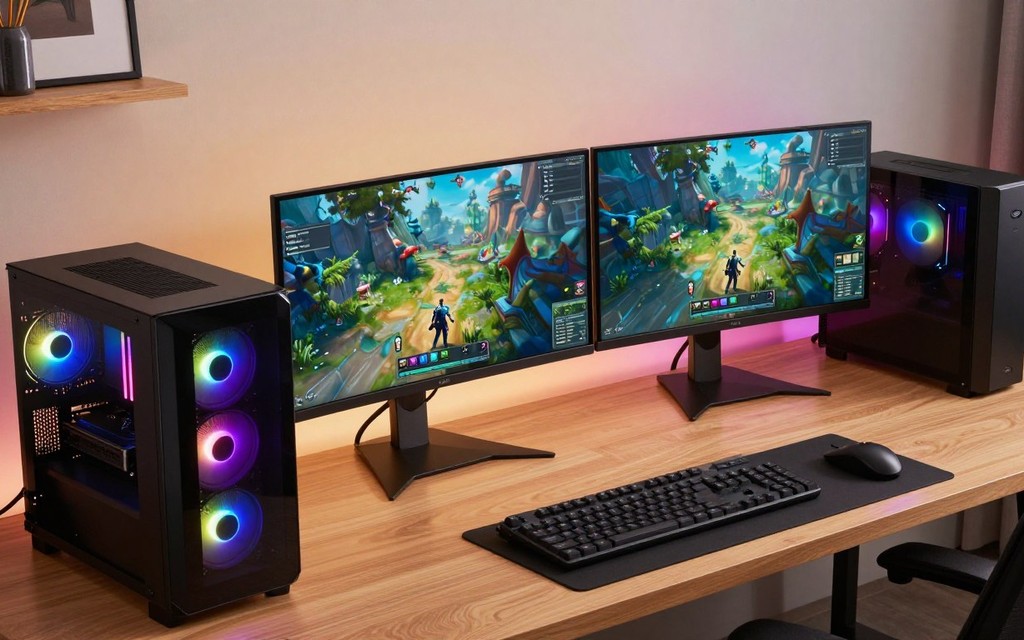
There is no fixed monitor limit based only on CPU generation. Some 10th-generation desktop CPUs support three displays, while some 12th-generation models support four. Motherboard output design can reduce the number that works at the same time.
The graphics card or integrated graphics engine sets part of the system’s display capability. Available outputs, motherboard wiring, firmware, and resolution demands also matter. A computer may have several ports without supporting every one of them at once.
Integrated graphics can suit a two-screen setup for gameplay on one display and background applications on another. A third screen may work on some systems, but its resolution and the way the motherboard routes its outputs can affect the result.
A newer CPU generation does not guarantee a higher display count. Check the exact computer components rather than relying on a general claim about what a generation supports.
Check the exact CPU, motherboard output wiring, firmware, and graphics hardware combination before adding another display.
How Do You Keep a Mounted Setup Stable and Tidy?
A mounted pair is not finished until both screens stay steady and the cables move freely with the arms. Leave enough slack for normal movement without letting a cable hang where it can snag.
Cables should move with the arms without becoming pinched or stretched. Route power and display cables through the mount’s channels or clips when available. Leave enough slack at moving joints for the screens’ normal range of motion.
Move each arm slowly while watching the cables. A tight cable can pull on a monitor port or limit the arm’s movement. Keep loose loops controlled, but do not bind a cable tightly to a moving joint.
If Windows does not show a connected screen, open Settings > System > Display and select Identify. For a missing display, open Multiple displays and select Detect. Also check that the monitor is powered on and set to the correct input.
- Tighten the mount as instructed.
- Test each screen for wobble.
- Move each arm through its normal range.
- Check that cables remain free.
After any screen move, check the mount and cable slack again before returning to gameplay.
Recheck cable slack and mount stability after moving either screen to a new position.
Conclusion
Mount two screens when the change will make your gaming position more comfortable or give useful desk space back. A mount is optional if the current stands already keep both displays steady and easy to view.
For the right setup, focus on the problem you want to solve: crowded desk space, awkward positioning, or limited access to background tasks. A practical next step is to measure the desk and confirm what each display can support before choosing hardware.
Measure the desk, verify both VESA patterns and screen weights, then choose the mount style that fits your layout.
FAQ
Why would you need two monitors for gaming?
Two monitors let you keep chat, streaming controls, walkthroughs, or music available without switching away from the game. The primary display can stay focused on gameplay while the secondary display holds the application you want to check. That can be especially useful when you stream or follow a guide, but it is optional if you prefer one focused screen.
Is a 27 or 32 better for gaming?
A 27-inch monitor is sharper at 1440p, with 109 PPI compared with 93 PPI on a 32-inch monitor. A 32-inch screen gives you a larger image and can feel more immersive, especially at a greater viewing distance. Choose based on the image size you prefer and how much room you have for the display.
Is 3 monitors overkill for gaming?
Three monitors suit players who want a wider supported game view, but they are unnecessary for many gaming setups. Three 1080p displays represent about 6 million pixels, so the graphics card has more pixels to render than with one screen. Games also need to support a combined canvas for the wider view to work as intended.
How do I get my two monitors to show different things?
Choose Extend, not Duplicate, in Windows 11 display settings or with Windows key + P. Extend gives each monitor a separate desktop area, so you can put the game on one screen and other applications on the second. Duplicate shows the same desktop on both screens instead.
How many monitors can my PC support?
Many modern integrated graphics setups run two to three screens, and some newer platforms support four. The practical limit depends on the graphics hardware, available ports, motherboard wiring, firmware, and resolution demands. Check the exact CPU and motherboard combination, since a generation name alone does not guarantee a particular display count.
How to make two monitors act as one?
Use NVIDIA Surround to arrange supported displays and set the combined resolution and refresh rate. The game must support a combined multi-monitor canvas for the setup to work as one wider view. Some interface elements may land near the edges or display bezels, so test the arrangement in a game you play often.
Can I run 2 monitors off 1 HDMI port?
A basic HDMI splitter usually mirrors one signal rather than creating two independent screens. For separate desktop areas, use two supported graphics card outputs or a compatible USB video adapter. A USB adapter’s driver, resolution, refresh-rate limits, and intended workload can affect whether it fits a gaming setup.
How to set up dual monitors for gaming?
Connect both displays to supported graphics card outputs, choose Extend in Windows, arrange the display icons to match the desk, and set the gaming screen as primary. Then select each monitor’s supported resolution and refresh rate. Extend keeps the game on one screen while allowing other applications to stay open on the second.
If you want to dig further into ghost in machine, read our Ghost in Machine guide.
If you want to dig further into how to easily connect and share files between, read our How to Easily Connect and Share Files Between guide.
If you want to dig further into clever ways to score free computer hardware, read our Clever Ways to Score Free Computer Hardware guide.

Leave a Reply